Upload Android Library
This document shows how uploading an Android Library on JFrog Artifactory Repository Manager; it’s a storage location from which software packages may be retrieved and installed on a computer.
Configuring Gradle to upload Android artifacts
Let’s upload a very simple archive by configuring a new Gradle task for Android library project.
In your top level build.gradle file, add a reference to the repository of the Artifactory Gradle plugin:
buildscript {
    dependencies {
        classpath "org.jfrog.buildinfo:build-info-extractor-gradle:4.4.12"
    }
}
Next in your library we will need to apply two new plugins: one to prepare the Maven artifacts maven-publish and one to upload the archives to Artifactory ` com.jfrog.artifactory`:
apply plugin: 'com.jfrog.artifactory'
apply plugin: 'maven-publish'
Every Maven artifact is identified by three different parameters:
artifactId: the name of your library groupId: usually the package name of your library version: identifies different releases of the same artifact For the last two, we will explicitly define a variable in the build.gradle file.
def libraryVersion = '1.0.0'
def packageName = 'it.monksoftware.pushcampsdk'
def artifactIdName = 'pushcampsdk-wind'
Now we need to configure the maven-publish plugin so that it knows which artifacts to publish to Artifactory. For our purpose we will refer to the name-release.aar file, generated by the assembleRelease task. Note that we can predict the name by taking the name of artifactIdName:
publishing {
    publications {
        aar(MavenPublication) {
            groupId packageName
            version = libraryVersion
            artifactId artifactIdName
            artifact(sourceJar)
            artifact("$buildDir/outputs/aar/$artifactIdName-release.aar")

            pom.withXml {
                def dependencies = asNode().appendNode('dependencies')
                configurations.api.allDependencies.each {
                    if (it.group != null && (it.name != null || "unspecified".equals(it.name)) && it.version != null) {
                        def dependency = dependencies.appendNode('dependency')
                        dependency.appendNode('groupId', it.group)
                        dependency.appendNode('artifactId', it.name)
                        dependency.appendNode('version', it.version)
                        dependency.appendNode('scope', "api")
                    }
                }
            }
        }
    }

    //publish to filesystem repo
    repositories {
        maven {
            url "$buildDir/repo"
        }
    }
}
Finally we need to configure the com.jfrog.artifactory plugin so it knows which repository to publish the artifacts to. We will upload the artifact to our repository (https://artifactory.repo.monksoftware.it) and place it in the default libs-release-local repository. Please make sure that the correct username and the corresponding password (which must be in the encrypted format you can find on the artifactory webUI for your user) are in the gradle.properties file.
artifactory {
    contextUrl = 'https://artifactory.repo.monksoftware.it'
    publish {
        repository {
            repoKey = 'libs-release-local'

            username = artifactory_username
            password = artifactory_password
            maven = true
        }
        defaults {
            publications('aar')
            publishArtifacts = true

            properties = ['qa.level': 'basic', 'q.os': 'android', 'dev.team': 'core']
            publishPom = true
        }
    }
}
If you want build your Android Library with source files you should add these lines on your gradle:
task sourceJar(type: Jar) {
    from android.sourceSets.main.java.srcDirs
    classifier "sources"
}
Deploying artifacts
Now that our Gradle buildscripts are properly configured we can easily publish artifacts to Artifactory by running the following command:
First of all run assembleRelease
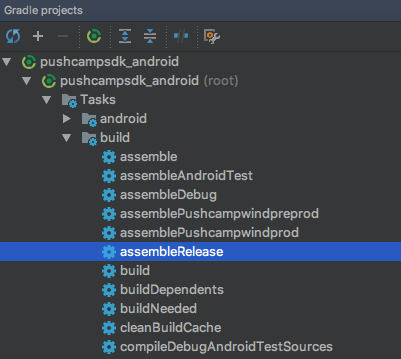
After that run sourceJava
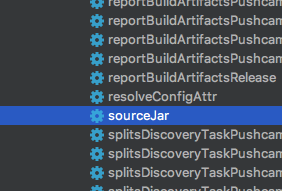
Finally run generatePomFileForAarPublication and artifactoryPublish
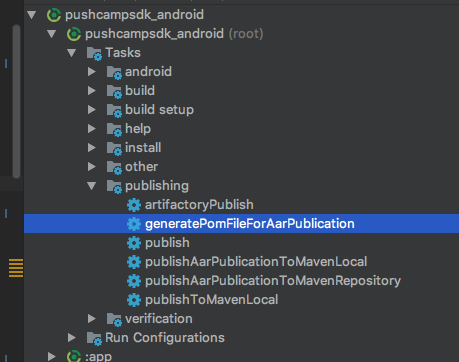
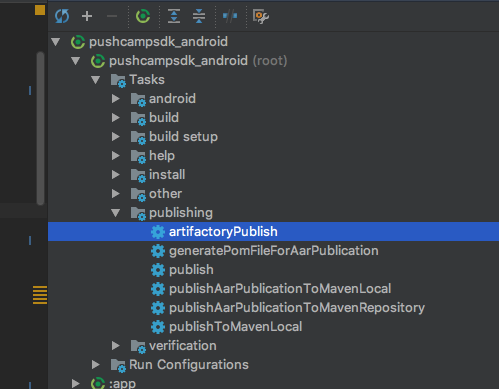
Notice how we first invoke assembleRelease before we invoke the actual artifactoryPublish task, because of the way we defined the artifacts to publish in the previous section.
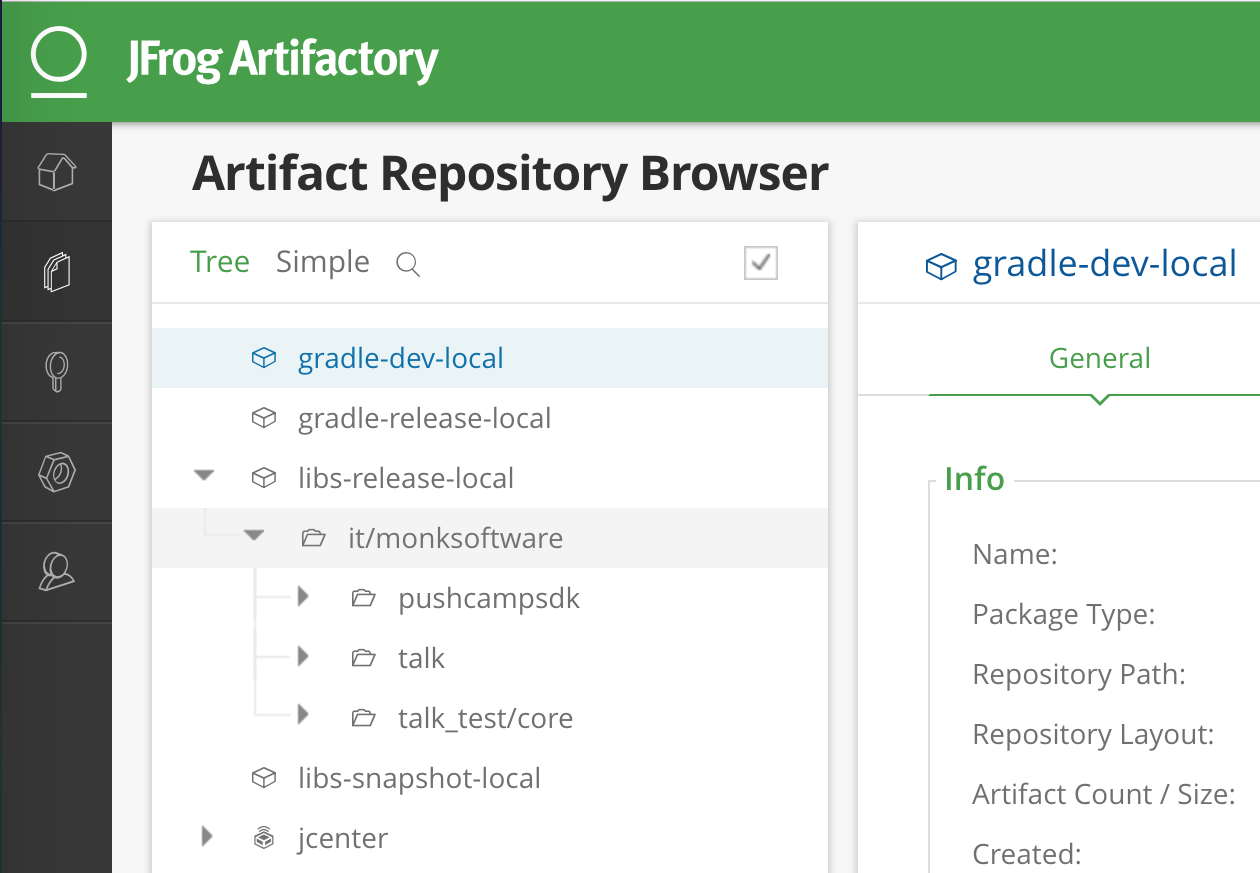
You can very easily verify that the upload was successful by navigating to https://artifactory.repo.monksoftware.it and signing in with your credentials.
Using the artifacts
To make use of the published artifacts in another project we have to add our Artifactory repository to the list of Maven repositories in your top level build.gradle file:
allprojects {
    repositories {
        google()
        jcenter()
        maven {
            url "https://maven.google.com"
        }
        maven {
            url "https://artifactory.repo.monksoftware.it/libs-release-local"
            credentials {
                username 'USERNAME'
                password 'PASSWORD'
            }
        }
    }
}
After we can simply add the artifact as a dependency in the build.gradle file of our main project:
dependencies {
    api 'it.monksoftware.pushcampsdk:pushcampsdk-wind:1.0.0'
}